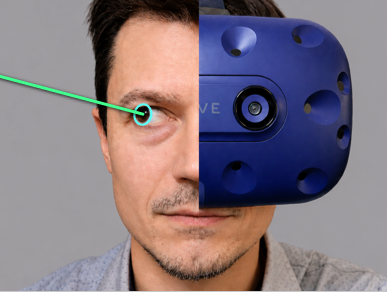
This tutorial shows how to add low-cost eye tracking to a VR or AR
headset with a small infrared camera. The tracker writes a gaze vector
from Python, then a Unity scene calibrates that vector into a 3D gaze
ray for analysis, interaction, communication, or custom VR projects.
The important requirement is that the camera can sit near one eye
without blocking the display or being fully enclosed. The GC0308 can
get warm during use, so leave it exposed enough for heat to escape.
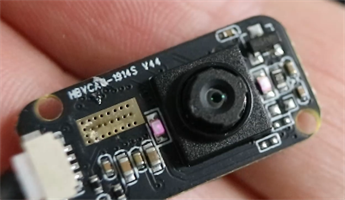
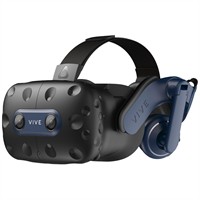
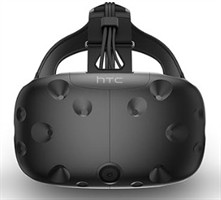
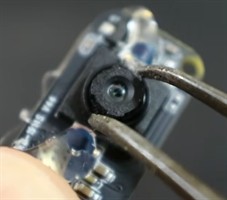
GC0308 IR cameraHTC Vive Pro headsetOlder Vive headset kit
Step 2: Set the camera focus
Before mounting the camera, slightly unscrew the camera lens so the
focal distance is roughly 3 centimeters. This puts the eye in focus
when the camera is mounted close to the face inside the headset.
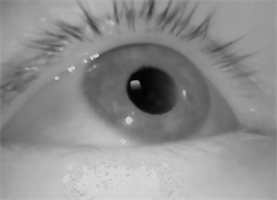
Connect the camera to your computer and check the stream in any basic
camera viewer. If the image is blurry at eye distance, keep making
small lens adjustments until the pupil and eyelids are clearly visible.
Camera lens adjusted for eye distanceEye clearly visible in the camera view
Step 3: Mount the camera inside the headset
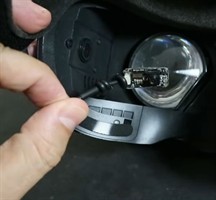
Remove the portion of the display padding on the side where you want
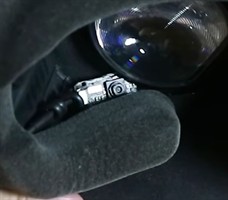
to track the eye. Use soft wire to hold the camera near the lens area,
then bend the wire until the camera has a clear view of your eye.
The exact position and orientation will vary by headset, so treat the
first mount as adjustable rather than permanent.
To verify the view while wearing the headset, open the desktop view
in SteamVR and display the camera feed with a camera viewer. Adjust
the wire until the full eye is visible and the camera does not block
the headset display.
Padding removed and camera insertedCamera angle checked inside the headset
Step 4: Download the tracker code
Download the Python eye tracking script and the Unity VR calibration
project from GitHub. The Python script detects the pupil and writes a
gaze vector to a text file. The Unity script reads that file, shows
the uncalibrated gaze point, and guides the headset calibration.
The main Python script is
3DTracker/Orlosky3DEyeTracker.py. The Unity files are in
VREyeTracker.
Step 5: Prepare the Unity scene
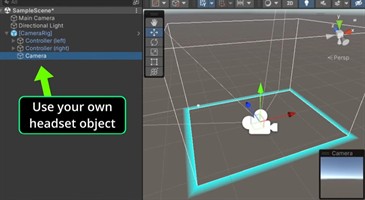
In Unity, import the VR rig or SDK for your headset. For a Vive Pro,
the SteamVR assets can be used. Add the downloaded
EyeTracker.cs script to the headset object in your scene.
This should be the object that represents the headset transform,
because the gaze sphere is positioned relative to the headset in 3D
space.
Set the GazeFilePath value in the Unity script to match
the write path used by the Python tracker. The example script reads
C:\users\jason\gaze_vector.txt, but you should change
that path if your Python script writes gaze_vector.txt
somewhere else. The Unity script expects six values: the three origin
coordinates followed by the three direction coordinates.
Unity scene with the headset tracker scriptUncalibrated gaze marker in the headset view
Step 6: Run the Python tracker first
Start the Python script before pressing play in Unity. Select the
eye-tracking camera, then let the tracker self-center on your eye.
If the camera image is mirrored or upside down for your headset
mounting position, use the CVflip function in the Python
script to flip the camera image as needed.
python Orlosky3DEyeTracker.py
Once the pupil is being tracked and gaze_vector.txt is
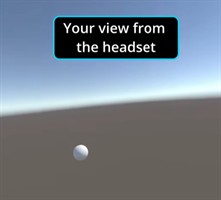
updating, return to Unity and press play. In the Unity scene view,
you should see a moving gray sphere that represents the uncalibrated
gaze estimate.
Step 7: Calibrate the gaze ray in Unity
With the Unity game window selected, press c to begin
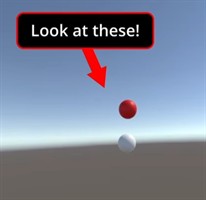
calibration. The script shows three red calibration spheres: center,
up, and down. Look directly at the center sphere and press
c, then look at the up sphere and press c,
then look at the down sphere and press c. The default
up and down targets are 10 degrees above and below center.
After calibration, the gray sphere should track with your eye. The
script uses the center target to rotate the raw Python direction
forward, then uses the up and down targets to scale vertical gaze
motion. Press b if you want to leave a frozen copy of the
current gaze sphere in the scene for debugging.
Red calibration sphere in the headset view
Step 8: Use the gaze ray in your own project
The calibrated gaze ray can be used for gaze analysis, VR interface
selection, attention-aware games, assistive communication, or custom
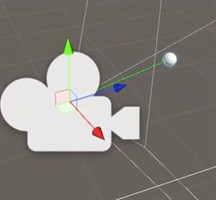
interaction experiments. In Unity, use the headset origin and the
direction from the headset to the gray gaze sphere as a ray, then
test what it intersects in your scene.
Vector3 gazeDirection = (gazeSphere.transform.position - transform.position).normalized;
Ray gazeRay = new Ray(transform.position, gazeDirection);
For a first prototype, start by drawing the ray and logging the object
it hits. After the ray is stable, add smoothing, dwell selection, or
application-specific behavior.
Final calibrated gaze ray in Unity (green ray)
Step 9: Use AI to build a VR gaze application
You can use an AI coding assistant or large language model to turn
the calibrated gaze ray into a custom VR interaction. Give the model
the Python tracker, the Unity script, and a short description of what
the gaze ray represents. Ask for small testable changes, then paste
any Unity console errors or unexpected behavior back into the chat.
These sample prompts can help you get started:
I have a Unity VR eye tracker that reads gaze_vector.txt from a Python script
and calibrates it into a 3D gaze ray from the headset. Explain how I can use
this ray to select objects in a VR scene.
Modify my Unity script so the gaze ray performs a Physics.Raycast every frame
and highlights the object the user is looking at. Keep the first version simple.
Add dwell selection to this VR gaze tracker. If the user looks at the same
interactable object for 1 second, trigger that object's selection event.
Help me smooth this VR gaze ray without adding too much latency. Explain where
to add the smoothing code in the Unity script.
Here is the Unity console error I get when reading gaze_vector.txt. Explain what
is probably wrong and give me the smallest setup or code change to try first.